Watch in the app
Installing SubPro Player, saving videos and notifications (iPhone and Android)

シュラプネル・オンラインは、スマホのアプリ「SubPro Player」で見るのがいちばん快適です。ブラウザのバーが無い画面で開き、全画面でもミラー・A-B リピート・10 秒スキップがそのまま使えます。動画をスマホに保存すれば、電波の無い所でも見られます。
アプリを入れてログインする
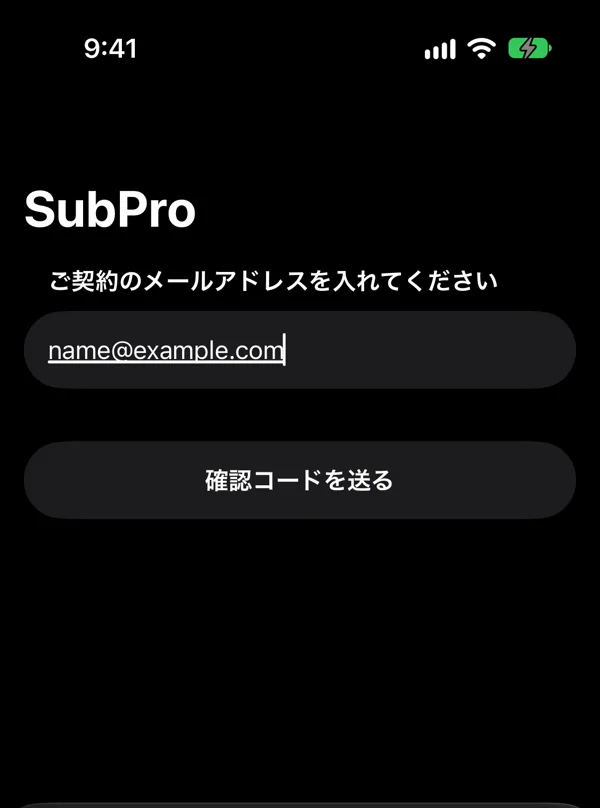
上のボタンから「SubPro Player」を入れて開き、ご契約のメールアドレスを入れて「確認コードを送る」を押します。
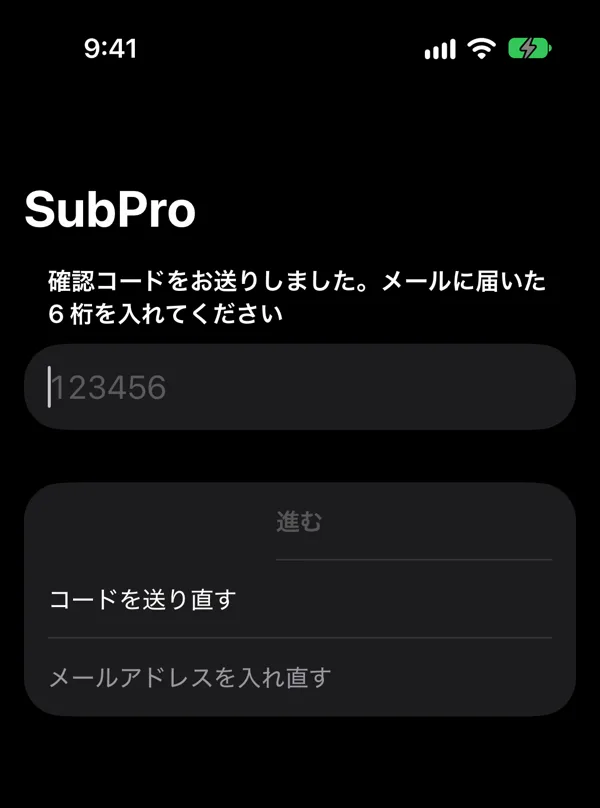
メールに届いた 6 桁の確認コードを入れて「進む」を押します。メールは「SubPro Player」の名前で届きます。届かない時は迷惑メールのフォルダも見てください。
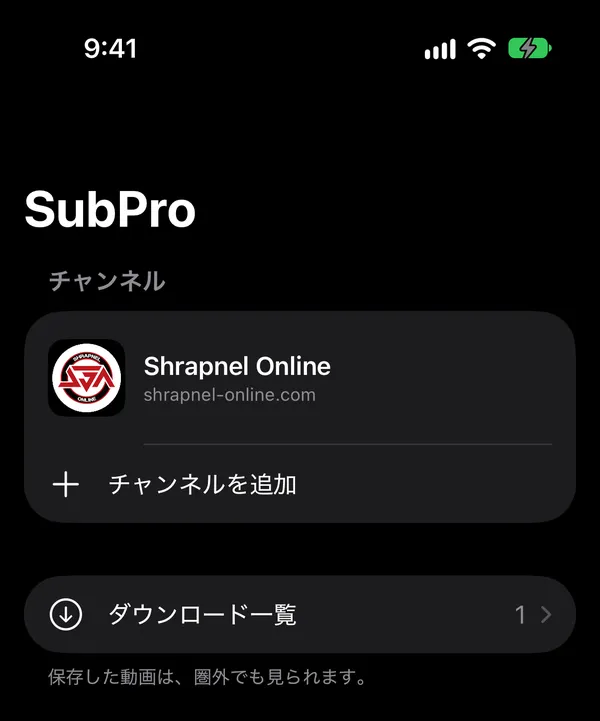
会員になっているチャンネルが並びます。「Shrapnel Online」を押すと、ログインした状態で開きます。
ログインすると、あとはサイトと同じ画面です。動画の探し方やプレイヤーの使い方は使い方のページを見てください。
動画をスマホに保存する (電波の無い所で見るために)
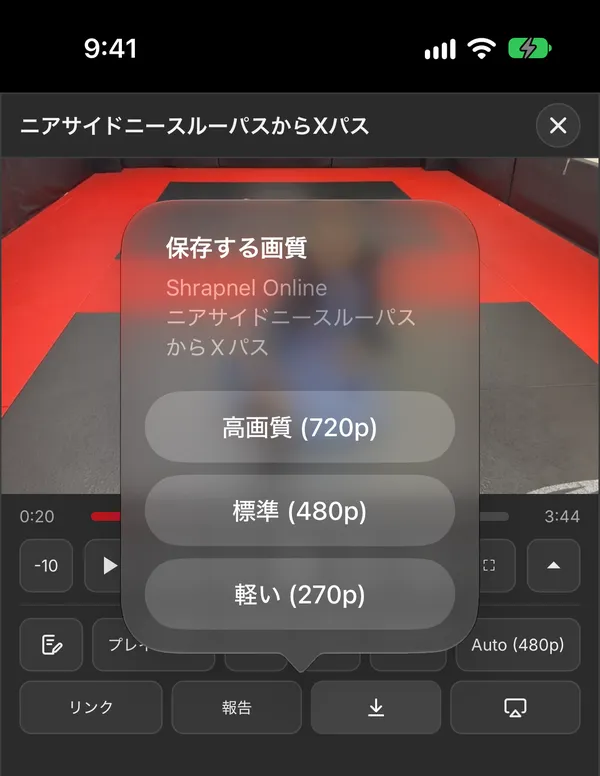
動画を開き、プレイヤーの右端の「▼」を押します。出てきたボタンの中の「↓」(下向きの矢印) が保存のボタンです。
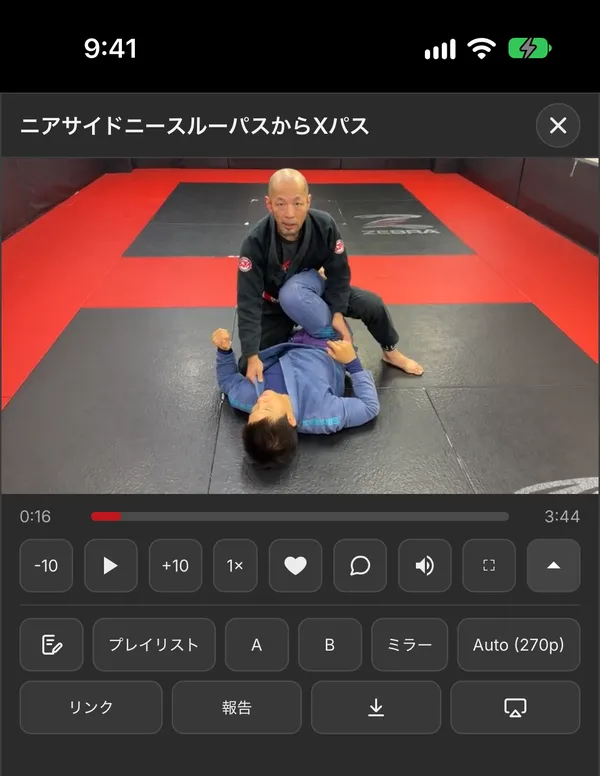
保存する画質を選びます。高画質 (720p)・標準 (480p)・軽い (270p)。画質が高いほどスマホの容量を使います。迷ったら「標準」で十分です。Wi-Fi のある所で保存するのがおすすめです。
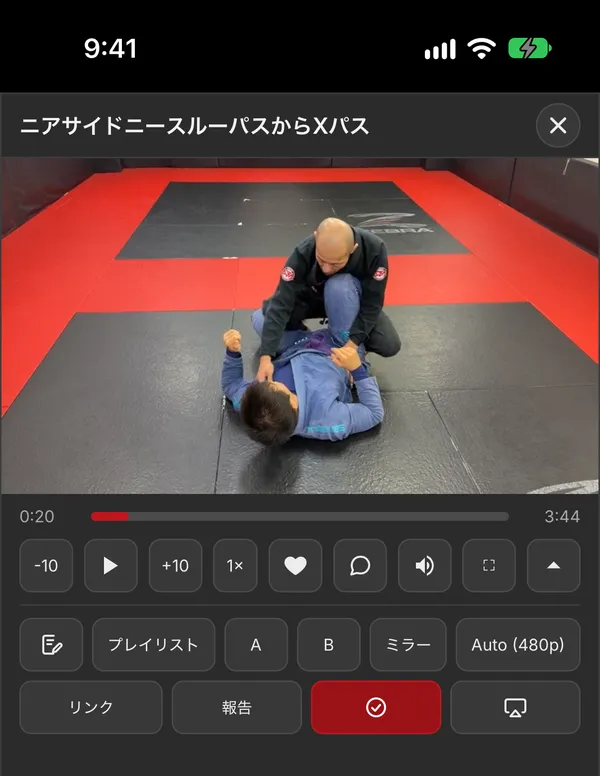
ボタンが「✓」に変わったら保存できています。保存中は進み具合の数字が出ます。保存した動画は、ライブラリなどのサムネイルの左上に「↓」の印が付きます。
保存した動画を見る
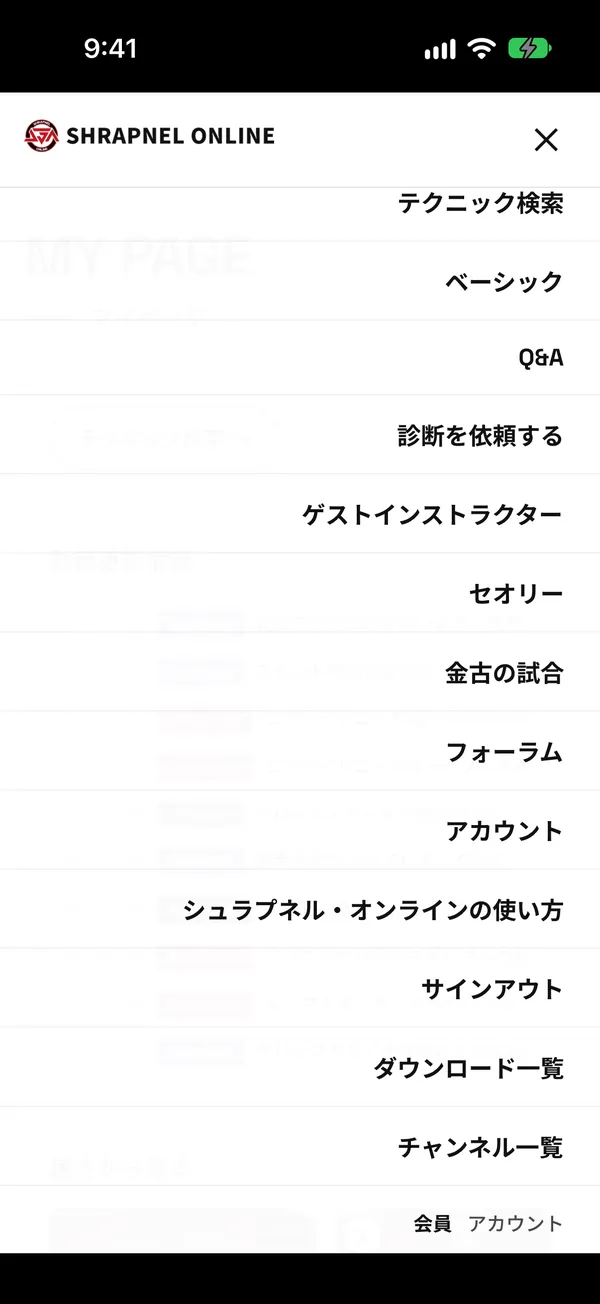
サイトの右上の「≡」(メニュー) を開き、下のほうの「ダウンロード一覧」を押します。電波が無い時は、アプリを開いた最初の画面 (チャンネルの一覧) の「ダウンロード一覧」からも開けます (3 の画像の下のほう)。
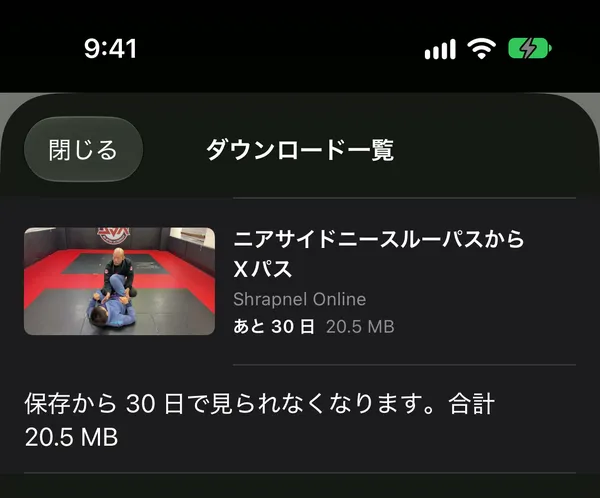
保存した動画が並びます。押すと再生します。保存した動画は、保存した日から 30 日間見られます。残りの日数は一覧に出ています。
通知
アプリでは、次の時に通知でお知らせします。
- 新作動画が公開された時 (何本か重なった時は、1 回の通知にまとめます)
- 自分が書いたフォーラムの投稿に、返信がついた時
アプリを初めて開いた時に、通知を送ってよいかを聞かれます。「許可」を押してください。あとから変える時は、スマホの「設定」→「通知」→「SubPro」からどうぞ。
全画面のときの操作
- 画面を 1 回タップすると、操作ボタンが隠れます。もう一度タップすると出てきます。
- 画面の左側・右側をすばやく 2 回タップすると、10 秒戻る・進む。
- 左上の「×」で、プレイヤーを閉じて元の画面に戻れます。
わからないことがあれば、お問い合わせかフォーラムに気軽に書いてください。
The best way to watch Shrapnel Online on your phone is the SubPro Player app. It opens without the browser bars, mirror, A-B repeat and 10-second skip all work in full screen, and you can save videos to watch with no signal.
Install and sign in
Get SubPro Player with the buttons above, open it, enter the email address of your membership and tap “Send code”.
Enter the 6-digit code from the email and continue.The email comes from “SubPro Player”. If it doesn't arrive, check your spam folder.
The channels you are a member of are listed. Tap “Shrapnel Online” and it opens, already signed in.
After that it's the same as the site. See the how-to page for finding videos and using the player.
Save videos to your phone (to watch with no signal)
Open a video and tap “▼” at the right end of the player. The “↓” (down arrow) button that appears is the save button.
Pick a quality.High (720p), Standard (480p) or Data saver (270p). Higher quality uses more storage; Standard is plenty. Saving over Wi-Fi is best.
When the button turns into “✓”, the video is saved. A percentage shows while it saves.Saved videos get a “↓” mark at the top left of their thumbnails.
Watch saved videos
Open the menu (“≡” at the top right) and tap “Downloads” near the bottom.With no signal, you can also open Downloads from the first screen of the app (the channel list, see step 3).
Your saved videos are listed. Tap one to play it.Saved videos can be watched for 30 days from the day you saved them. The days left are shown in the list.
Notifications
The app notifies you when:
- A new video is out (several at once come as one notification)
- Someone replies to a forum post you wrote
The app asks for permission the first time you open it. Tap “Allow”. You can change it later in your phone's Settings → Notifications → SubPro.
In full screen
- Tap the video once to hide the controls; tap again to bring them back.
- Double-tap the left or right side to skip back or forward 10 seconds.
- Tap “×” at the top left to close the player and go back.
Questions? Use the contact page or post in the forum.